
Getting started
Navigation, search and shortcuts
Sidebar or top navigation, switching companies, quick search with Ctrl + K and every keyboard shortcut in ezRechnung explained.
On this page
ezRechnung is built so you reach every feature in a few clicks. This page explains the navigation, switching between companies and the quick search.
Sidebar or top navigation#
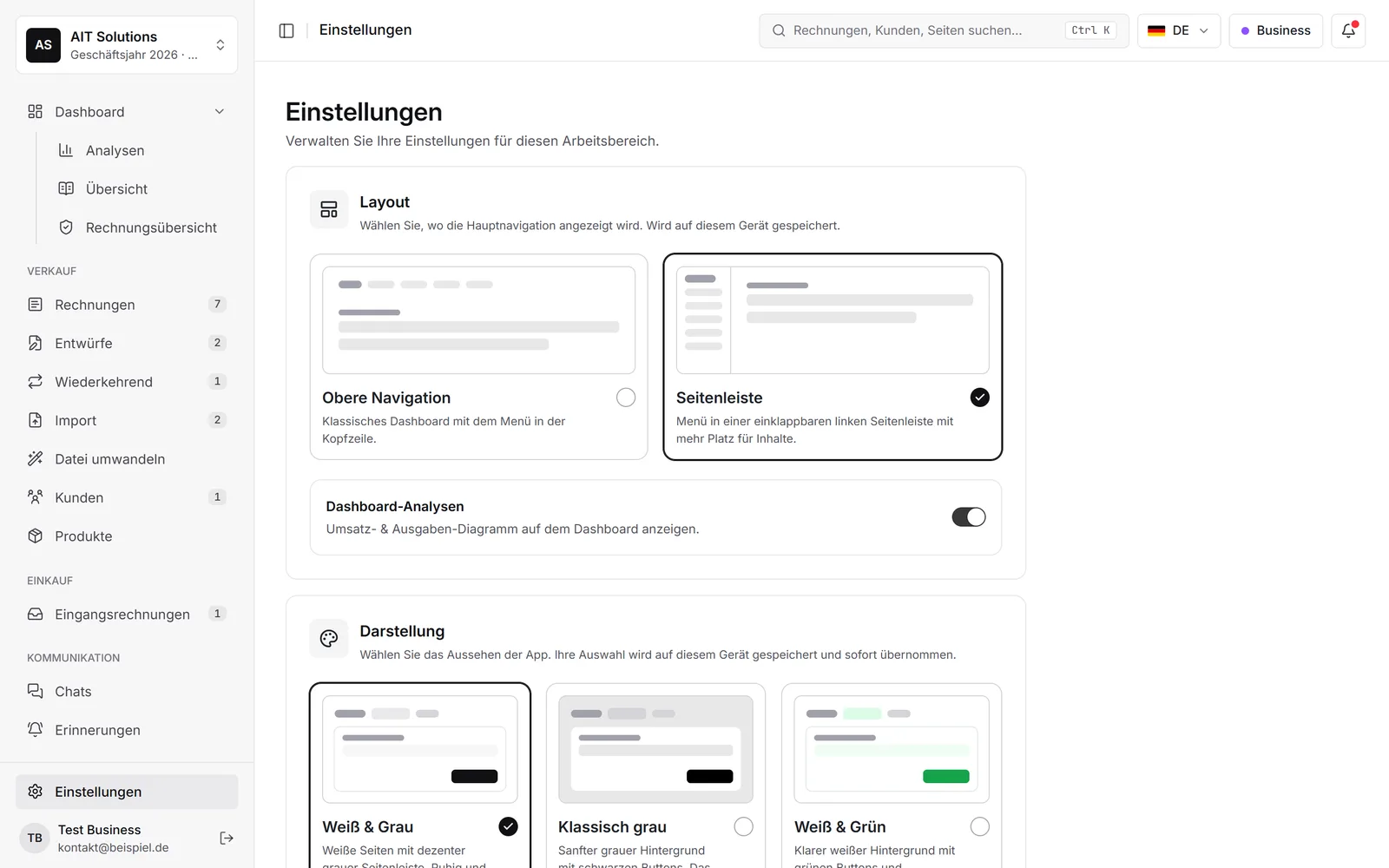
You decide where the main menu sits. Under Settings › Layout choose:
- Sidebar: menu in a collapsible left sidebar with more room for content.
- Top navigation: classic dashboard with the menu in the header.
The choice is saved on this device.
Switch companies#
If you manage several companies, pick the active one under Switch company at the top of the navigation. Invoices, customers, drafts and figures always belong to the selected company.
Quick search with Ctrl + K#
Press Ctrl + K (on a Mac ⌘ + K) or click the search field in the header. You can search for:
- pages, for example “Customers” or “Settings”
- invoices by number or customer
- customers by name
There are also quick actions: New invoice, Import invoice, Upload received invoice and New customer.
Keyboard shortcuts#
| Keys | Action |
|---|---|
| Ctrl + K | Open quick search |
| ↑ ↓ | Move through search results |
| Enter | Open result |
| Esc | Close search |
| Ctrl + Enter | In the invoice editor: preview and validate |
| Enter | In chat: send message |
| Shift + Enter | In chat: new line |
Notifications and live updates#
The bell icon in the header shows new events: an invoice in your inbox, a chat message or a reaction from your customer, such as “Your customer approved invoice RE-2026-0012”. Lists update automatically when something changes; there is no need to reload the page.
Language and design#
Switch the language with EN / DE in the header. Under Settings › Appearance choose between White & gray and White & green.
Was this page helpful?